To create a relationship for a director, company secretary or partner who is listed in Practice Manager, complete the following steps:
- Launch Practice Manager.
- Double-click on the relevant company/partnership.
- Click on Relationships.
- Click on Create Relationship.
- In the wizard, select the related client/contact in the list.
- If the director/partner is not in the list, select the New option and create the director/partner.
- Note: You can select client or contact in the drop down box.
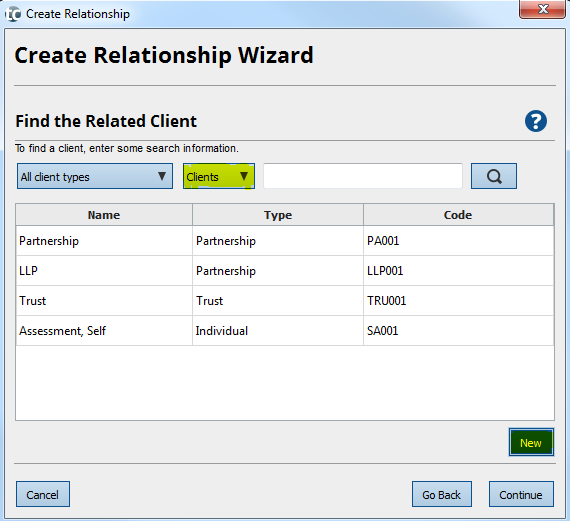
- Click on Continue.
- Select Director or Company Secretary and enter the date of commencement.
- Click on Continue and Finish.
NOTE: Don't forget to enter your clients UTR numbers in partnership records. These are a key component to finalising the relationships and ensuring that they link correctly.
- Repeat the above instructions for all directors, company secretaries or partners you need to add.
- Click on Continue until the Finish page.
- Click on Finish and Save.
If you make any changes after an accounting period has been created, read the Knowledge Base article Error: Changes to officers don't update when I click on Refresh List.
