TaxCalc uses a database to store client, accounts and tax return data. This SimpleStep guide will help you to take regular backups.
If you run TaxCalc on a network, you must perform the backup on your server. You can't run a backup remotely from a computer that's connected to the server.
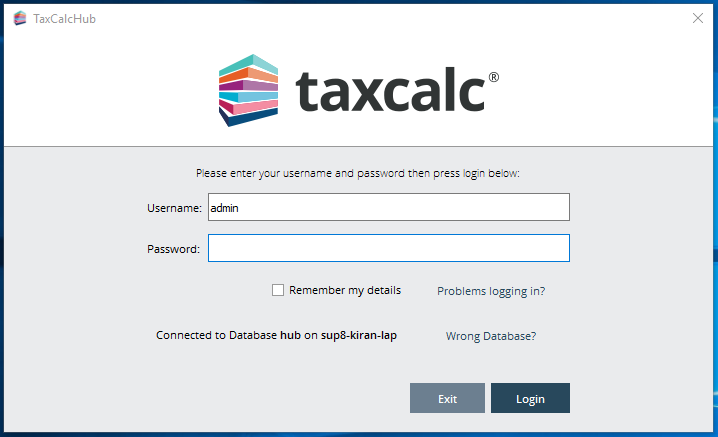
Step 1: Log into TaxCalc as the admin user
Open TaxCalc and log in with your user account details.
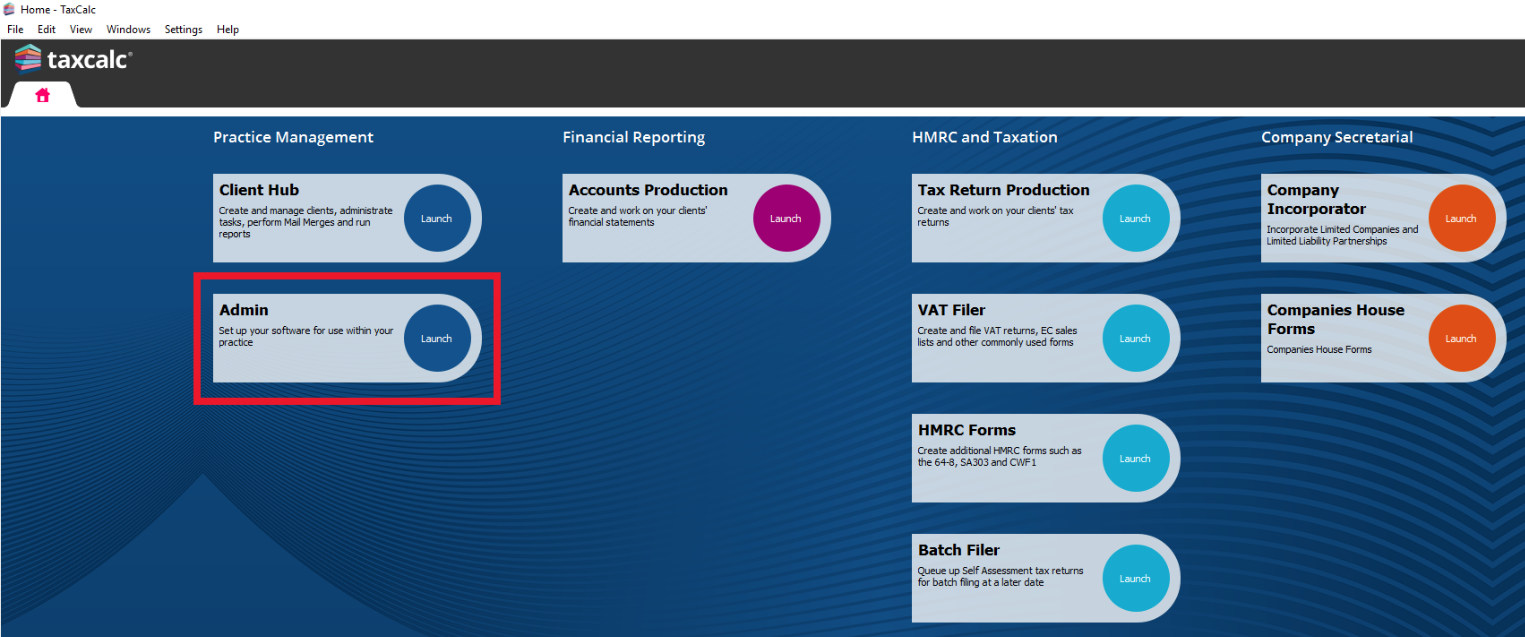
Step 2: Open Admin Centre
Launch Admin from the home screen.
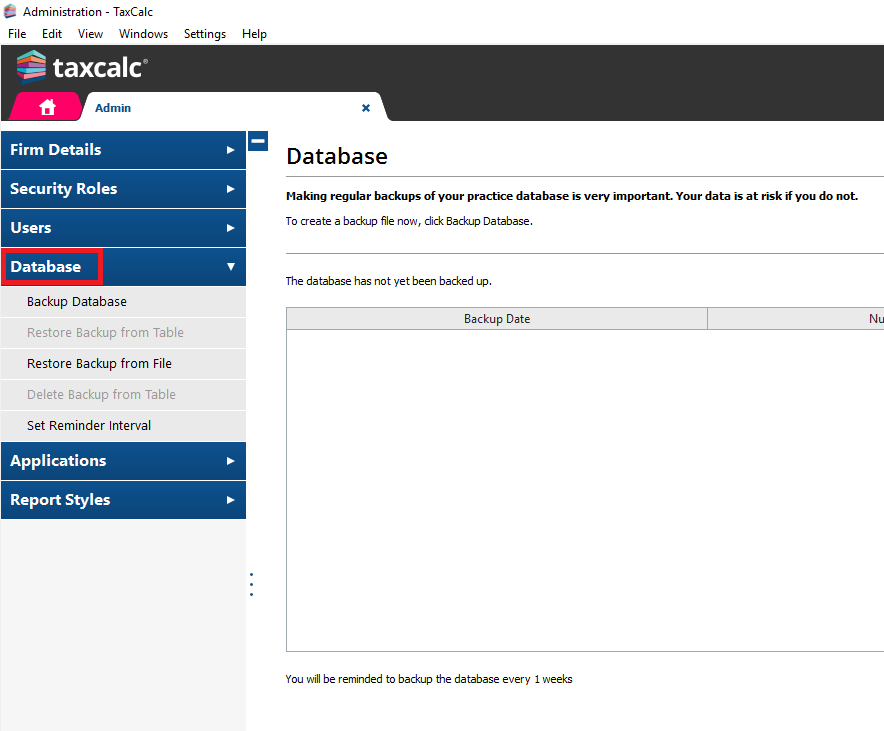
Step 3: Open the database
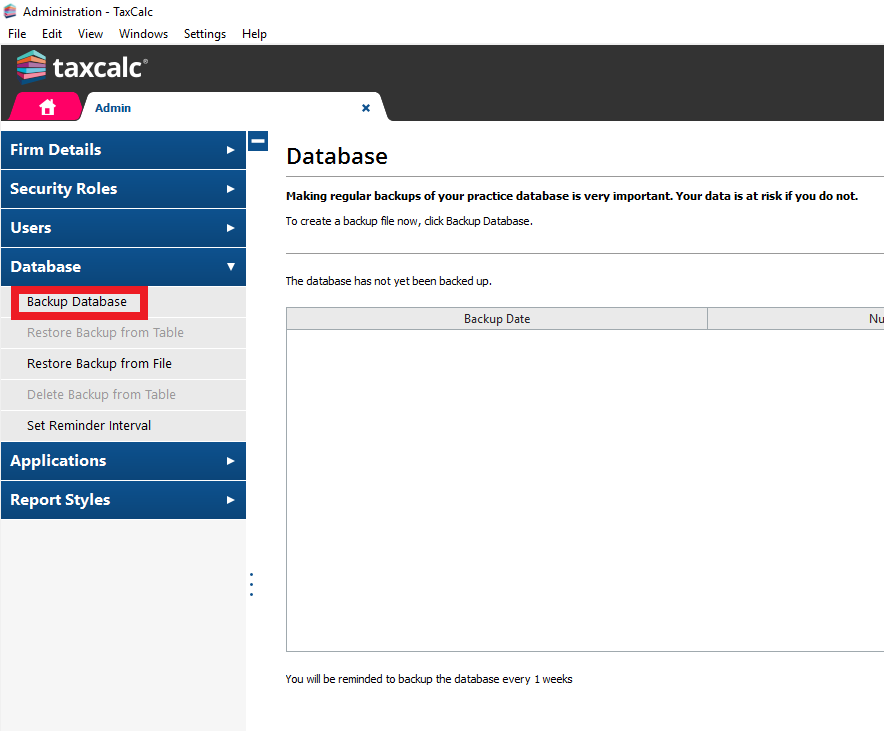
When Admin opens, select Database from the left-hand menu.
Step 4: Click on Backup Database
Select Backup Database from the left-hand menu.
Step 5: Choose the location for the backup file
A window will appear asking you to choose where to save the backup file.
It is good practice to save the backup file locally on this machine, the backup can then be moved after it has completed to a remote drive / location if required.
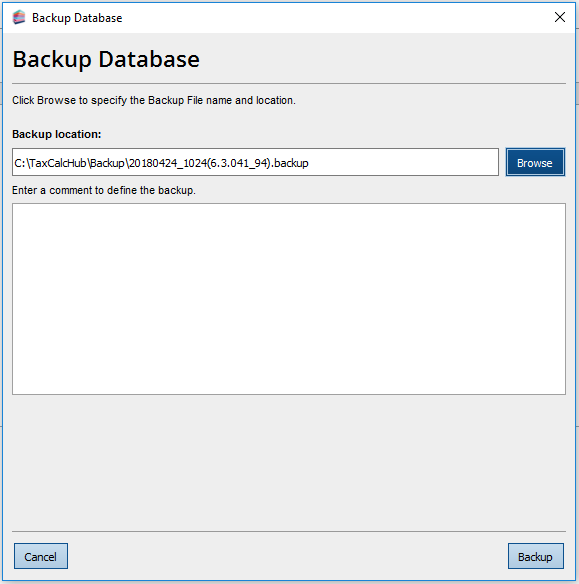
Click on Browse to change the location of the file.
Click on Backup.
Step 6: Finish
The window will show the progress of the backup process. If you have a lot of clients this might take some time.
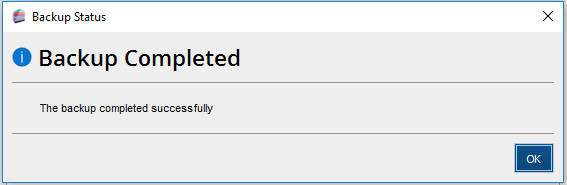
When the process has finished the screen will display following message.