How do I copy an import map?

Article ID: 2575
Last updated: 07 Sep, 2018

If you are looking to move an import map from one computer to another:

  1. Open a client in Accounts Production.
  2. Click on Posting.
  3. Select Import Trial Balance.
  4. Select Import via CSV file.
  5. Click on Use an existing import map.
  6. Click on Continue.
  7. Select the map which you wish to transfer your CSV on to and then and click on Export Map.
  8. Name and Save the file onto the new computer.

Once the file has been transferred over to the relevant computer, you will need to use that computer to:

  1. Open a client in Accounts Production.
  2. Click on Posting.
  3. Select Import Trial Balance.
  4. Select Import via CSV file.
  5. Click on Use an existing import map.
  6. Click on Browse to attach the CSV file. 
  7. Click on Continue.
  8. Click on Import Map.
  9. Select the import map you wish to import and click on Open.

If you are looking to make an adjustment to a map which has been created but you want to retain the original, you can do this too:

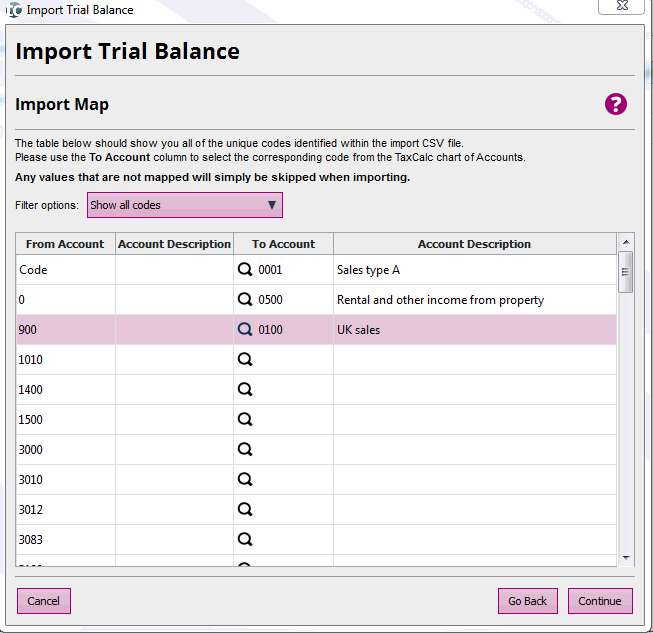
  1. Complete the import process as usual until you come to this screen:

  2. In the dropdown, change Show all codes to Show only unmapped codes.
  3. Once you have mapped the remaining codes, click on Continue to review the data that will be imported.
  4. Click on Continue.
  5. Click on Finish to create a new posting batch with the imported trial balance.
  6. You will be prompted to save the changes to the map where you will need to enter the Import Map Name and Import Map Description.
  7. Click on Save.
Article ID: 2575
Last updated: 07 Sep, 2018
Revision: 6
Views: 740
This article was:  


Also listed in
folder Accounts Production -> General Use