Switching Databases within TaxCalc
If you have more than one database containing TaxCalc data on your network or via TaxCalc CloudConnect, you may on occasion need to switch between databases.
Step 1: Switch database
There are two different ways to do this which have been listed below.
Switching on startup
When you start TaxCalc and there is more than one database available, you will see an option to switch database. Click on Wrong Database to start the process to switch to a different one.
.png)
Now select Switch Database if required.
.png)
The switch confirmation screen appears.
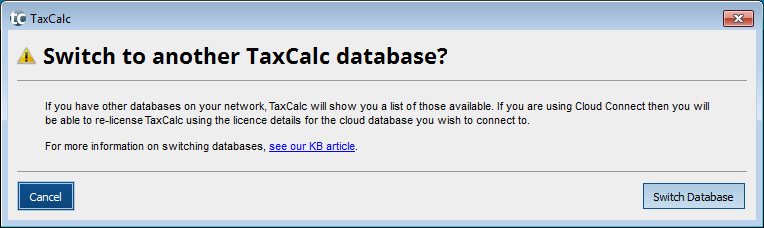
Switching from within the program
You can also switch the database from within the program by going to the notifications tab.
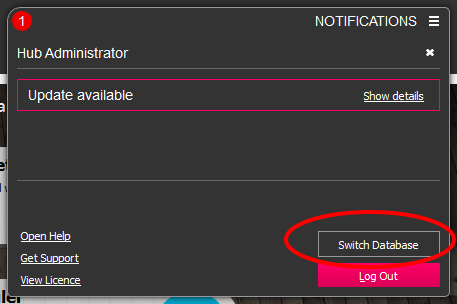
The switch confirmation screen appears.
Step 2: Select the Database to Connect to
You will then be presented with a list of known databases available on your network (as shown).
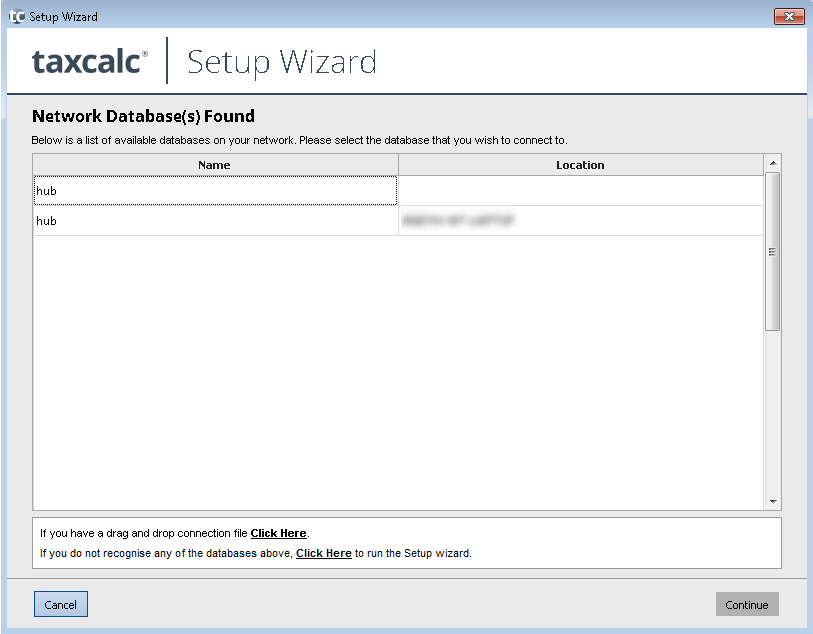
Connecting to another Network Database
If the database you are looking to connect to is listed, you should select it and click on Continue. You will then be prompted to enter the licensing credentials for the other database which you are trying to connect to before you are able to proceed.
If the database is not listed, then you should follow 'If you have a drag and drop connection file Click Here' and follow the onscreen instructions.
Connecting to a Cloud Database
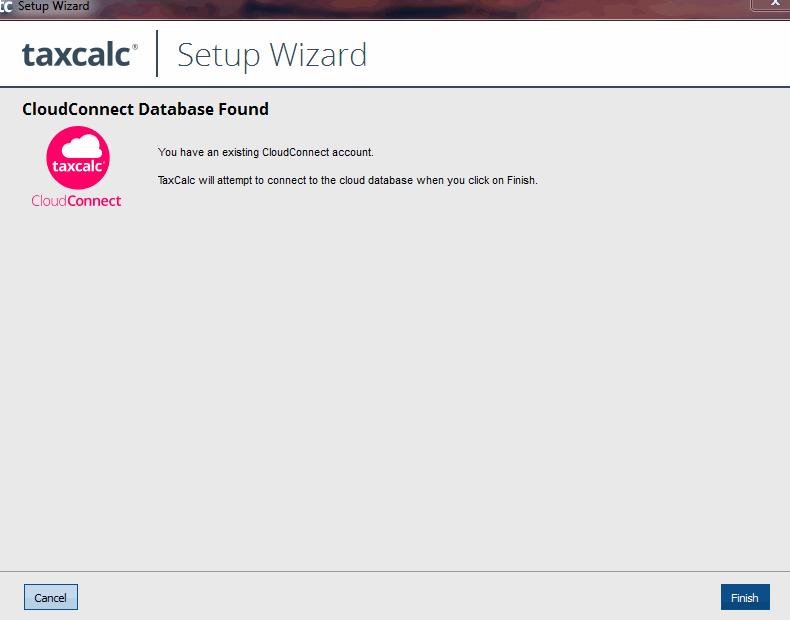
If the database that you are trying to connect to is a cloud database, you should follow the link for 'If you do not recognise any of the databases above, Click Here to run the Setup wizard.' This will prompt you to enter your licence details to connect to the cloud database.
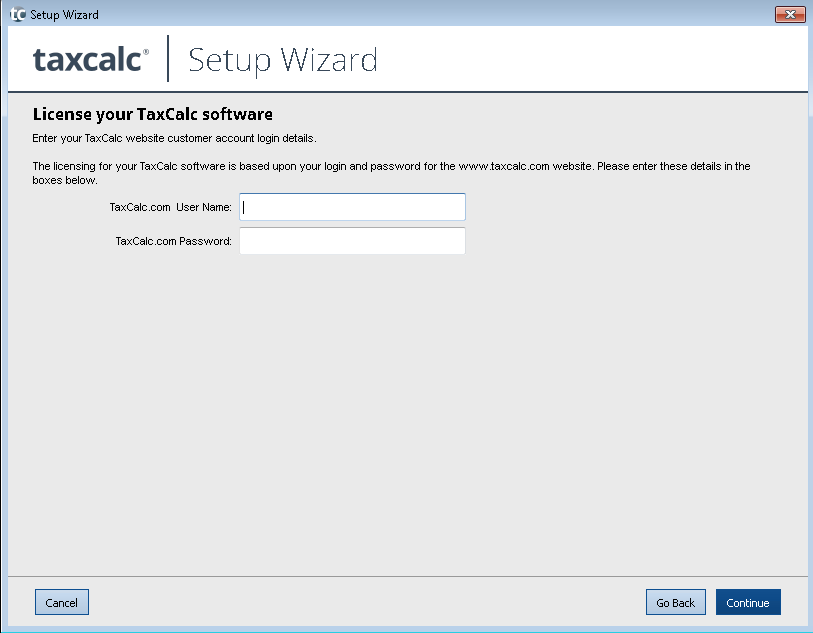
Once you enter the licensing credentials and click continue, you will then be able to click on the finish button to finalise the connection.
You will be prompted to enter your usual login details to gain access to the software.


